Creating and restoring snapshots
Create a snapshot
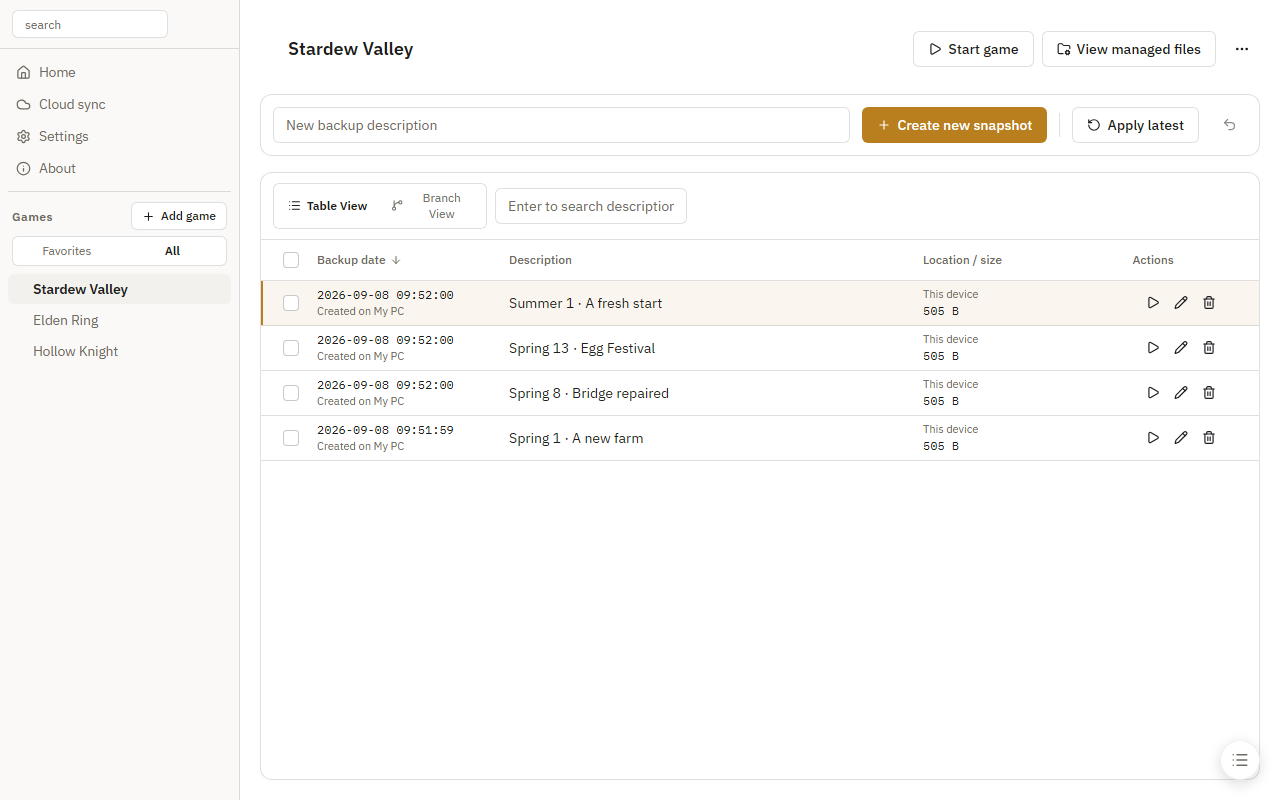
Select a game, enter a description, and click Create new snapshot. Search descriptions or sort by the date column to find a snapshot.
Restore a snapshot
- Exit the game.
- Click Apply beside a snapshot or Apply latest at the top.
- Confirm the restore, then restart the game.
Use the buttons beside a snapshot to edit its description or delete it. Select multiple snapshots for batch actions.
Extra backups
An extra backup is kept before restoring by default. Open Extra backups from the game's top-right menu to recover one.
Extra backups stay on this device. Each game keeps five by default; set the limit to zero to keep all of them.
Backup settings
In Settings → Backup settings, configure restore confirmations, extra backups, compression, and hash verification.
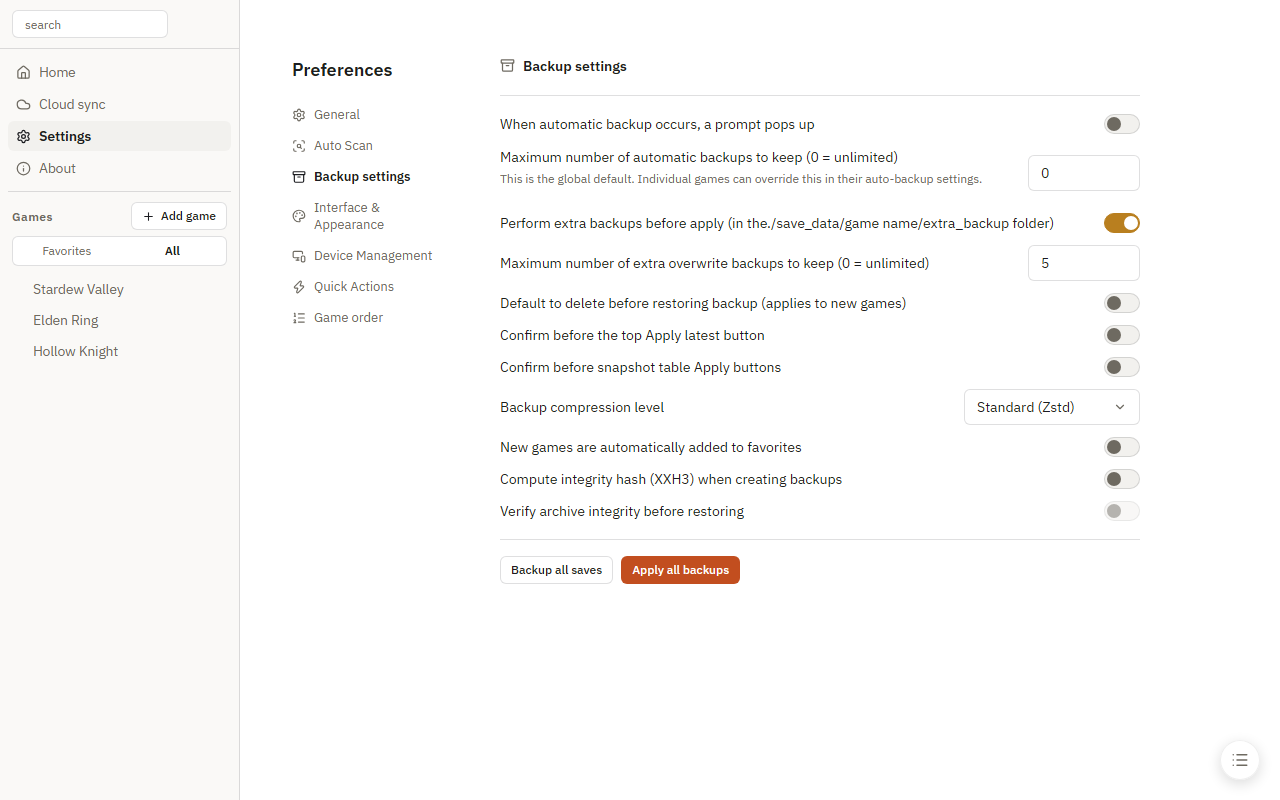
Choose No compression, Favor speed, Balanced (the default), or Favor size. These settings apply to newly created snapshots.
Restore without the application
New backups are ordinary .7z files, for example 2026-10-07_18-30-00_a1b2c3d4e5f6.7z. The timestamp helps you find a backup; the random suffix distinguishes backups created at the same time.
- Exit the game and extract the archive with a tool such as 7-Zip.
- Read
RESTORE.txtto check the game, backup time, note, and original save locations. Instructions always use English; names, notes, and paths retain their original text. - Keep a copy of your current saves, then copy the extracted files or folders to their locations on this device.
_rgsmcontains identification metadata and does not belong in the game directory.
Saves retain their filenames and relative directories. Conflicting names are kept separately. Registry backups are standard .reg files; check their key paths before importing. When changing devices or accounts, use this device's actual locations rather than copying the original paths from the instructions.
Each new archive includes its own recovery instructions and does not require Backups.json. Upgrade local older backups to obtain this layout. Missing historical times or locations are marked rather than invented.